
Get The Most Affordable Hosting in the World!
Starting at just $1.87/month, Vercaa offers unbeatable pricing for world-class web hosting services.
Fast, reliable, and secure hosting to power your website without breaking the bank. Plus, enjoy a free CDN for faster loading times worldwide!
Get Started Now!To manage website and its content user has to login to WordPress dashboard which requires username and password which are preferred as WordPress Admin username and password. These credentials also preferred for security purpose as admin password can let your website to have an unauthorized access. That is why we prefer to modify changes when we install WordPress.
Today, in this tutorial we are sharing the procedure to reset WordPress Admin Password from Softaculous. We have shared other ways to change WordPress admin password as well on the blog. You can also check for how to change WordPress Admin username.
Let us learn about the procedure in detail.
- First, login to your cPanel account associated to your WordPress website. Check the multiple ways to login to cPanel.
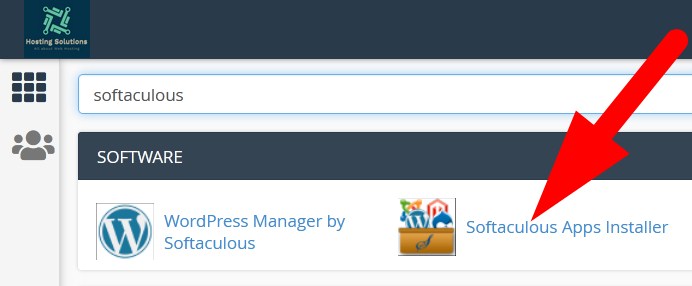
- In the search bar, type softaculous and select Softaculous Apps Installer and proceed.
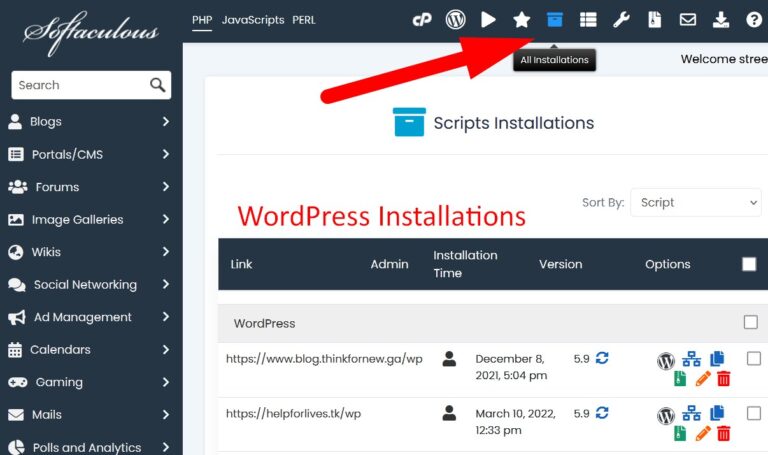
- On the next page, click over Installations and list of all installations will appear.
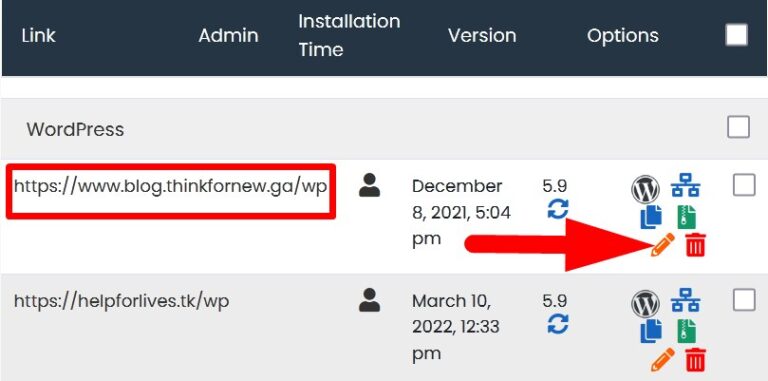
- Click over the pencil icon given next to the WordPress website for which you want to change the Admin Password.
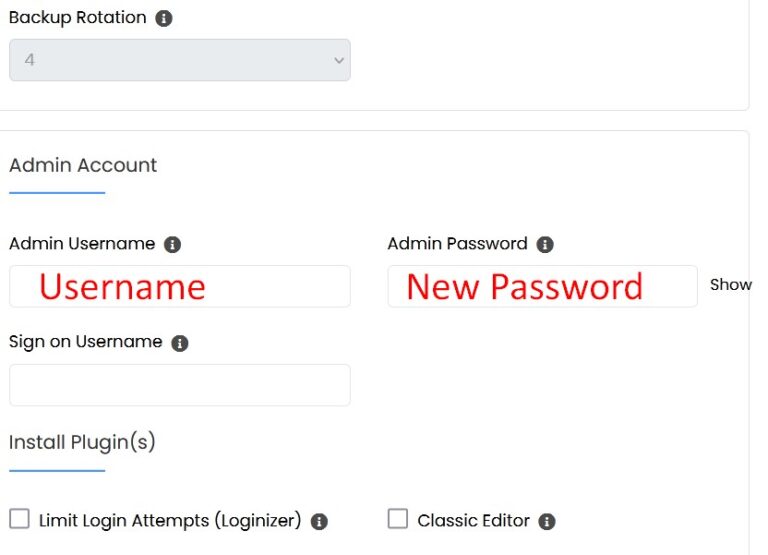
- On the next page, scroll down to Admin Account section and enter the new password in Admin Password box.
*You must know the Admin Username.
- Scroll down and Save Installation Details to update the new password.
The End! should you have any inquiries, we encourage you to reach out to the Vercaa Support Center without hesitation.