
Get The Most Affordable Hosting in the World!
Starting at just $1.87/month, Vercaa offers unbeatable pricing for world-class web hosting services.
Fast, reliable, and secure hosting to power your website without breaking the bank. Plus, enjoy a free CDN for faster loading times worldwide!
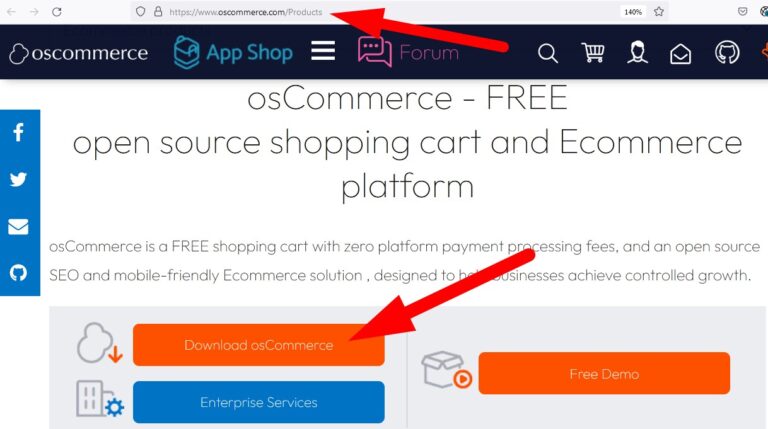
Get Started Now!- Visit the official website of osCommerce at www.oscommerce.com/Products and download .zip file by clicking over Download osCommerce.
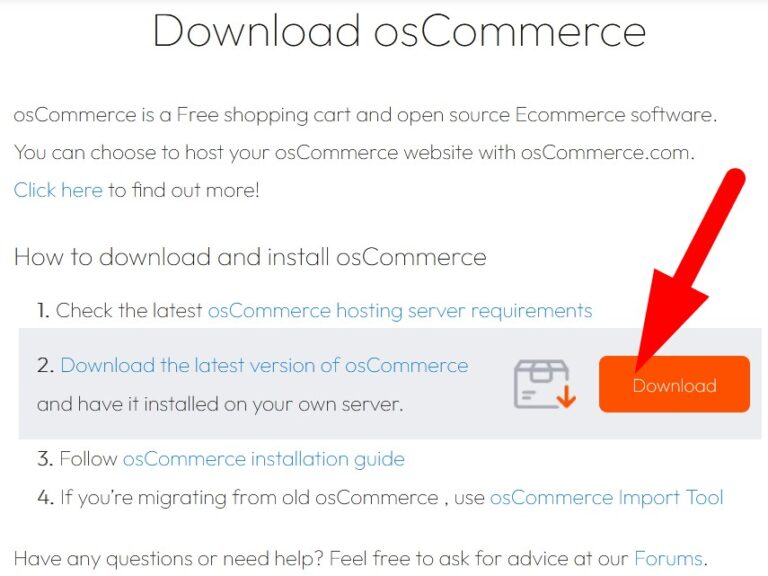
- You will be directed to the next page, where you will find multiple options.click over Download as marked in the below given image.It will be save as .zip file.
- Now, login to your cPanel account.
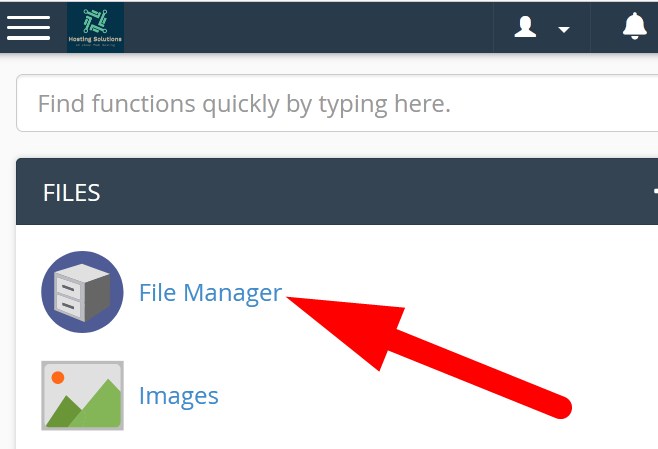
- Navigate to File Manager section.
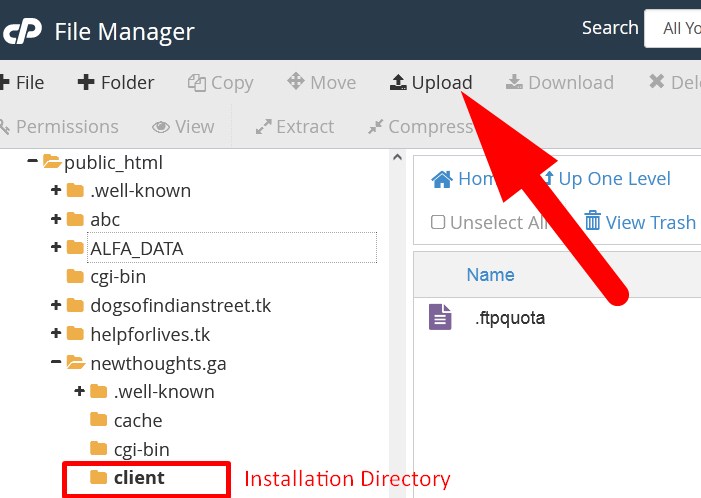
- Go inside the directory where you want to install osCommerce. Then click over Upload and upload .zip file to cPanel.
- On the next page, Select File and upload.
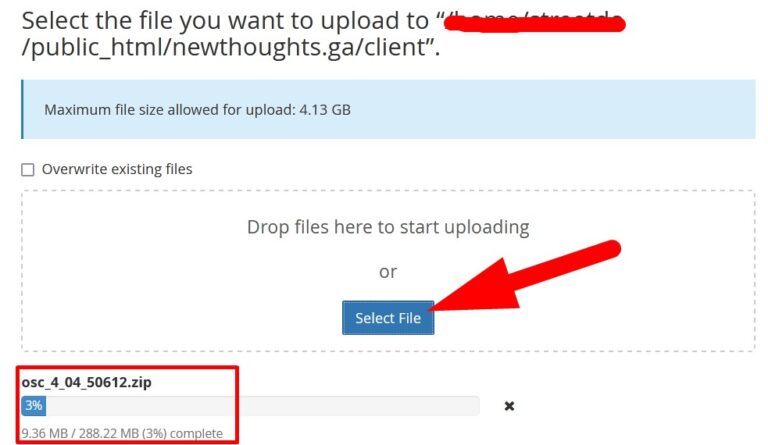
- Reload the page and you will find that .zip file would be present. Right click over the file and Extract.
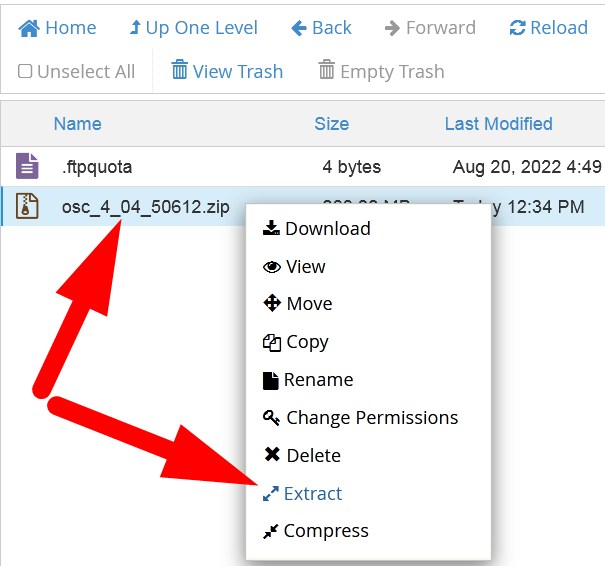
- Reload the page and all the files and directories will now appear. (If all the files did not appear then Extract application_files_do_not_unzip file).
- Now, go back to cPanel feature list page and navigate to My SQL Database from DATABASES section.
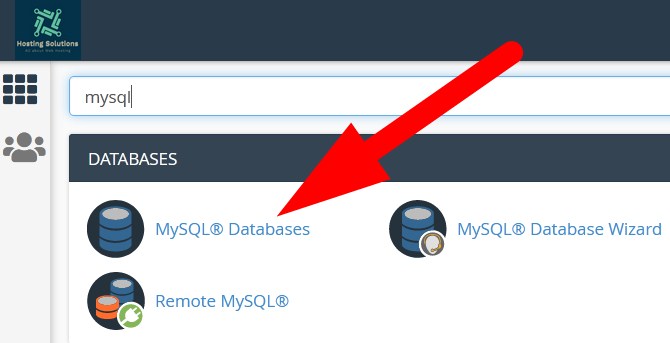
- Create New Database.
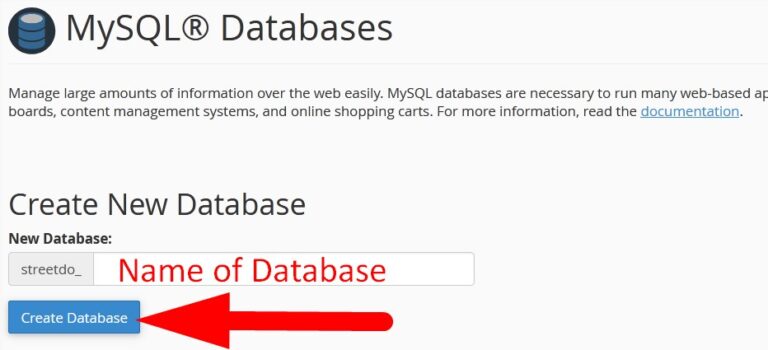
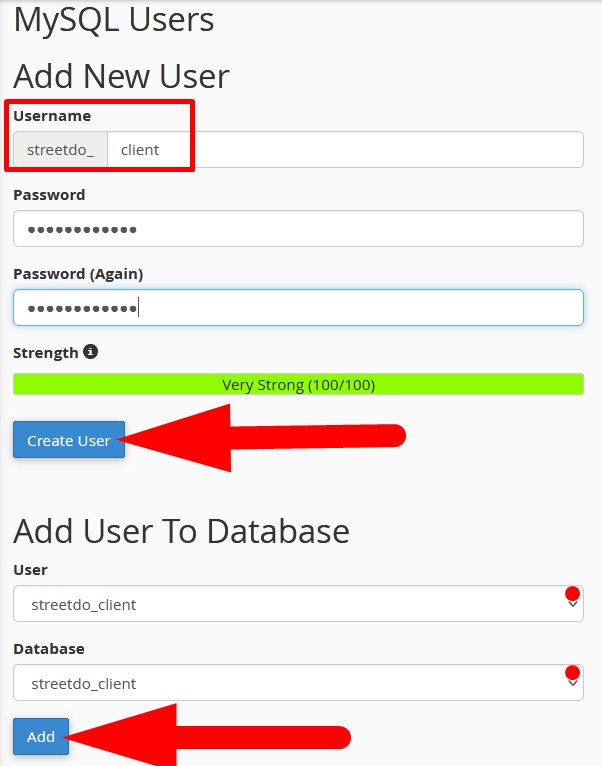
- Now, create User and Add User to Database. You can check the article creating MySQL database in cPanel.
- Now, go to browser and enter the domain with the location of osCommerrce installation directory as URL. For example, www. domain.com or www.domain.com/oscommerce
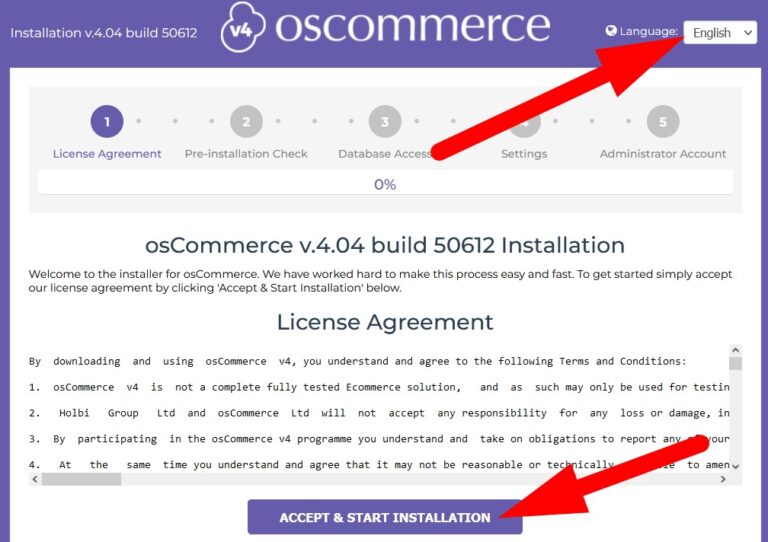
- Select the Language and ACCEPT & START INSTALLATION.
- You will be directed to Pre-Installation Check page. Click over PROCEED.
- On the next page, enter the credentials related to Database which you have created inside cPanel. Refer to below given image.
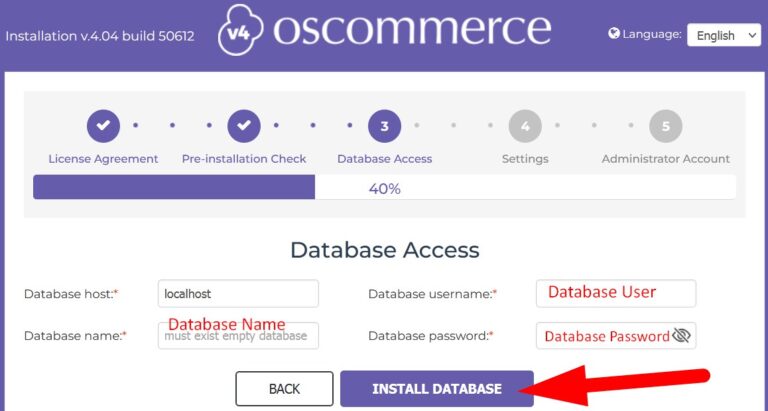
- Click INSTALL DATABASE.
- You will be directed to Settings page where you have to enter the credentials related to your website. Refer to below given image.
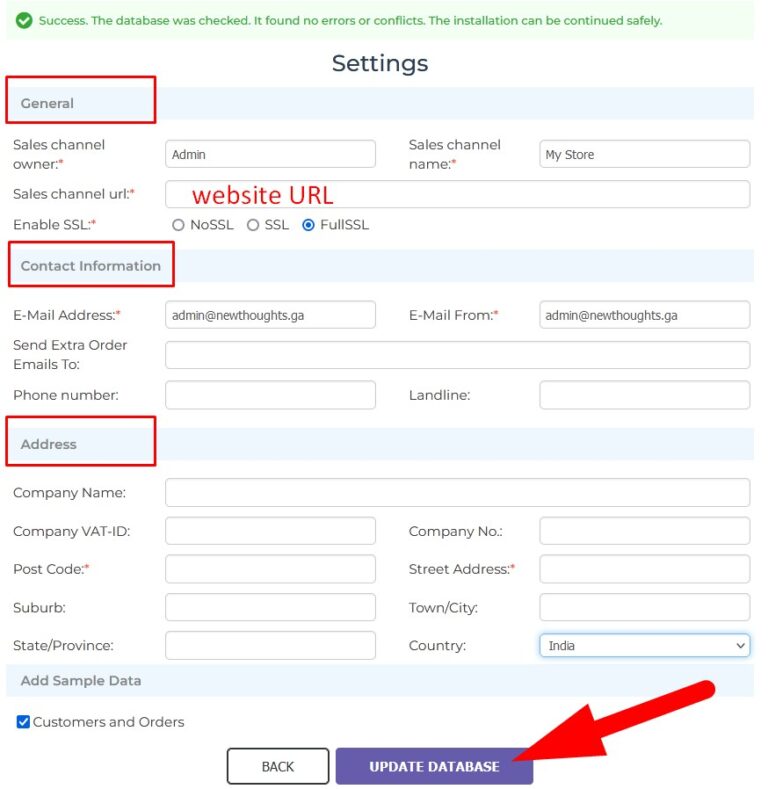
- Click over UPDATE DATABASE.
- You will now be directed to the page where you have to set up the Administrator account to access osCommerce dashboard page.
- Enter the credentials as directed in below given image.
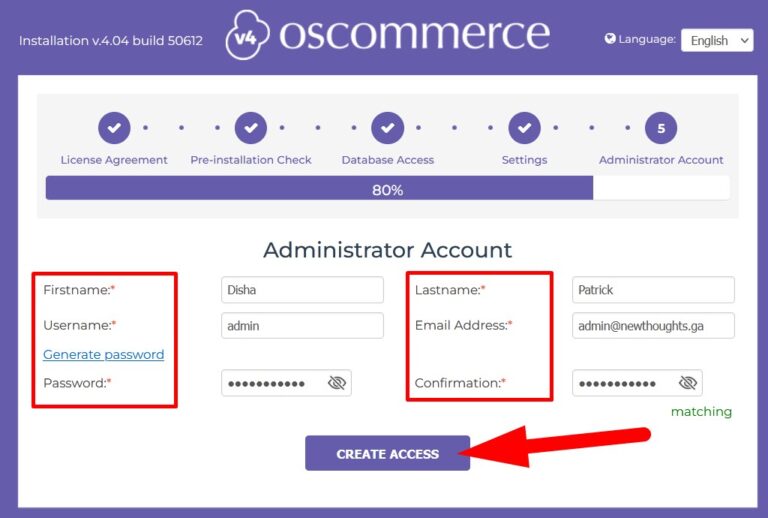
- Click over CREATE ACCESS.
- You will be directed to the final page from where you can COMPLETE INSTALLATION and visit admin area.
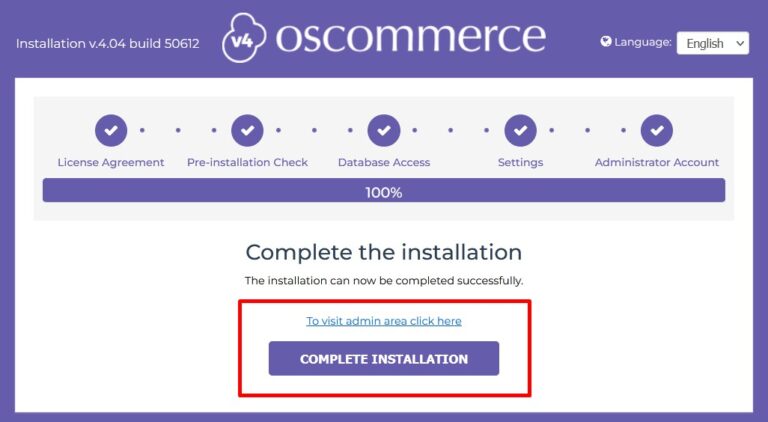
- When you click over Complete Installation, you will be directed to set up website page. Click over Admin section on the page to switch to admin Login page.


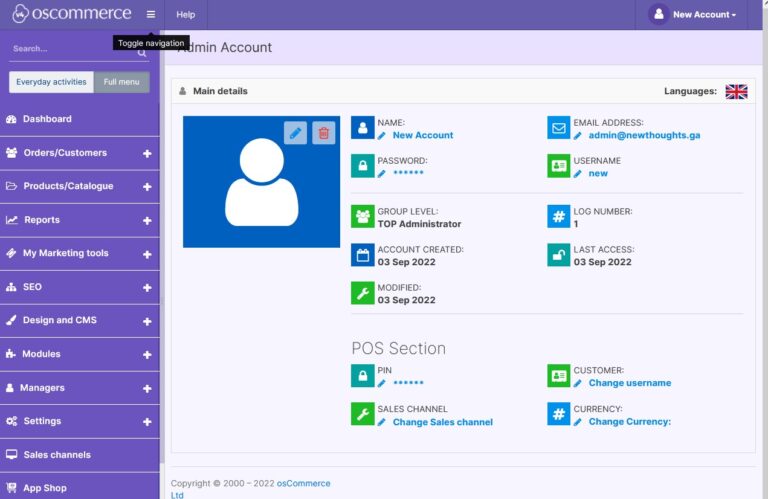
- Enter the email and password that you have set while installation and Sign Up and you will be successfully logged in to Admin area.
-
You will be successfully logged in to your osCommerce dashboard.
The End! should you have any inquiries, we encourage you to reach out to the Vercaa Support Center without hesitation.